Advanced Export Workflows
Depending on your licensing and data availability, you might have the option to use different Export Modes. If these are available for you, they should appear in the left hand panel in the Export Mode drop down, as shown below.
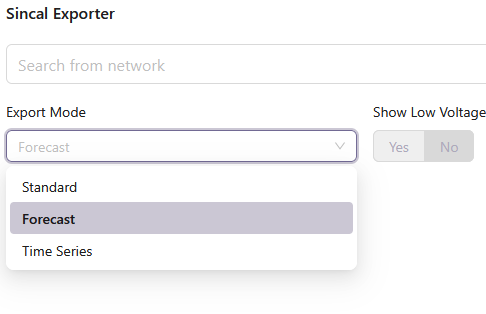
If these options are not available, but you are interested in the functionality described here, you can speak to your administrator or Zepben about enabling these options.
Time Series Export Mode
The purpose of the time series export mode is to export time series load and generation data into the SINCAL model. To enable this mode, you must have the source data available on the Zepben EWB server. In other respects, this export mode functions identically to a normal SINCAL export, and all the normal options apply. When you press Export Model to go to the options selection screen, there will be an extended set of options for choosing the time series data. You can access these options by pressing the Next button in the bottom right of the Export SINCAL Model screen, or by directly clicking on the (2) Import Time Series Data text. Either way, you will be able to access the options for importing the time series data, shown below.
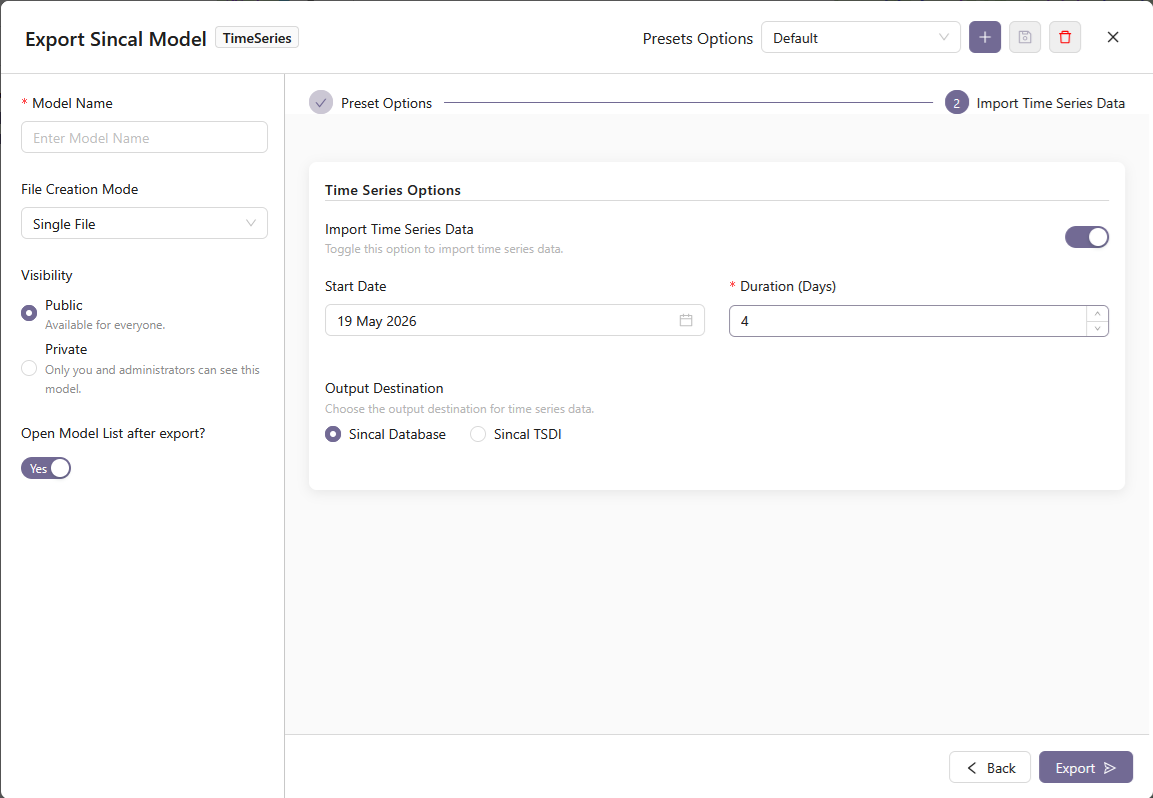
Here you may select the date when the time series data begins, and how many days of data you would like to export. Up to one year of data may be exported into the SINCAL model.
Creating and downloading time series data can be resource intensive. If you select multiple days of time series data, it may take longer for the exporter to create your model.
This option may be used with only MV networks, or with mixed MV and LV networks.
Note that data for generators (including DER/PV) is not populated by this process; the load values exported will reflect the data stored in the Zepben EWB server, and will only be applied to loads. If you are using the Create Embedded Generators option, or if DER appears in your LV network, those elements will not receive profile data.
If the feature is enabled, you can set the Output Destination of the load profile data directly into the SINCAL model as load profiles, directly associated with the load and populating the OpSer and OpSerVal tables of the SINCAL database using the Sincal Database option. Alternatively, you can select the Sincal TSDI option, which will populate the load profile data into a separate database, 'tsdi.db'. This will allow you to make use of the SINCAL Time Series Data Interface module to run load profile studies. If you select this option, settings within the output SINCAL file will be automatically configured to use the created TSDI database. Loads within SINCAL are linked to information within the TSDI database through the 'Master Resources' within SINCAL, under the 'Additional Data' tab for an individual element. The key associated with the value in the 'TSDI' category can be found on the Topology table of the TSDI database, which can in turn be linked to values on the DataPQ table of the TSDI database. (If you do not see this feature, and would like to enable it, please talk to Zepben).
Forecast Export Mode
Forecast export mode works with scenarios, usually created for use with the Zepben hosting capacity module (HCM). Its purpose is normally to model in SINCAL a specific forecast scenario from HCM to investigate a particular detail of the HCM analysis. To enable this mode, you must have scenario and forecast data loaded into your HCM database.
Forecast mode requires both the MV and LV network to be modelled. For this reason, the Show Low Voltage toggle will be locked when Forecast mode is selected.
Only a single feeder may be selected for Forecast mode. The feeder must include all LV distribution substations. When you press Export Model to go to the options selection screen, there will be an extended set of options for choosing the forecast data. The option to export Time Series data is also available in this mode, so those options will appear as well. You can access the extended options by pressing the Next button in the bottom right of the Export SINCAL Model screen, or by directly clicking on their names (eg. (3) Forecast Options). The time series options will appear as shown in the previous section, and the Forecast Options appear as shown below.
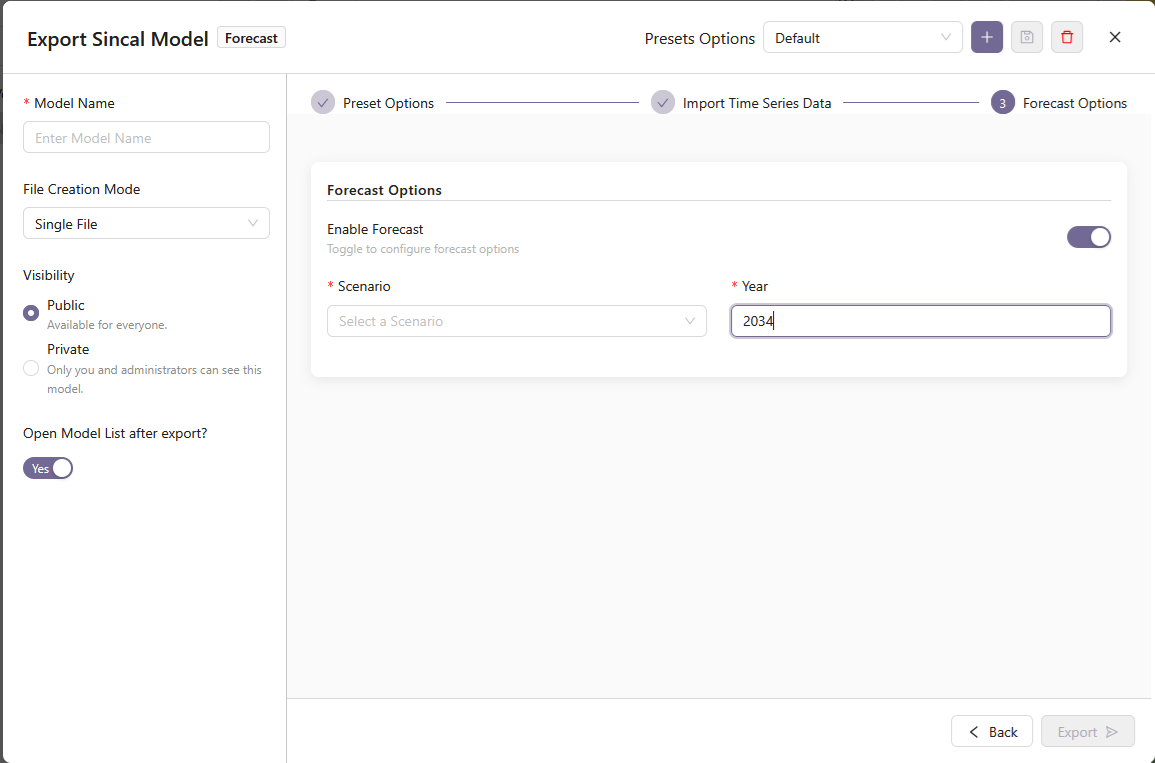
From the options shown here, you may select the desired forecast scenario and year. When exporting the SINCAL model, the forecast will be applied to the base model for the selected feeder, and that updated model will be exported to SINCAL.
It is normal to select the Smart Load and Import Time Series options along with the Forecast mode. Note that the dates work somewhat differently in this mode. The dates that you select in these options will become the dates used for the base scenario. The forecast scenario will then be applied to these dates. For this reason, the dates selected at this step should not be dates from the forecast year, but rather the dates from the base year that you wish to model and have the forecast applied to. In summary, when selecting dates in Forecast mode, do not use the forecast year, use the base year of your HCM load data.
If your forecast year is a leap year, but the base year is not, the SINCAL exporter will not insert data for February 29th into the exported model. The exported model will have its dates set as the base year dates.
Generators (including DER/PV) that existed in the base network will not have generation data populated by the exporter. New DER created in the forecast will have load/generation values of their own.