Getting Started Guide (Web)
What is the Zepben SINCAL Exporter?
-
Takes data from Energy Workbench (EWB), Zepben’s primary platform, and creates a SINCAL model from it.
-
Other data can potentially form a part of the SINCAL model, through settings or the exporter’s input database.
-
Numerous configuration options, which will generally only need to be set once, perhaps for the whole organisation.
Things You Will Need:
-
Web Browser
Use a modern web browser (e.g., Chrome, Edge, Firefox) for the best experience. -
Access to SINCAL Exporter Web Application
Visit the SINCAL Exporter Web application URL provided by your administrator (eg https://XXXXX.zb.energy). You may need authentication, access credentials, or a VPN connection, depending on your organization's security requirements. Talk to your System Administrator or Zepben for more information.
Getting Started Using the SINCAL Exporter
Through the web interface, there will be a menu option to access the SINCAL exporter at the top of the Screen.
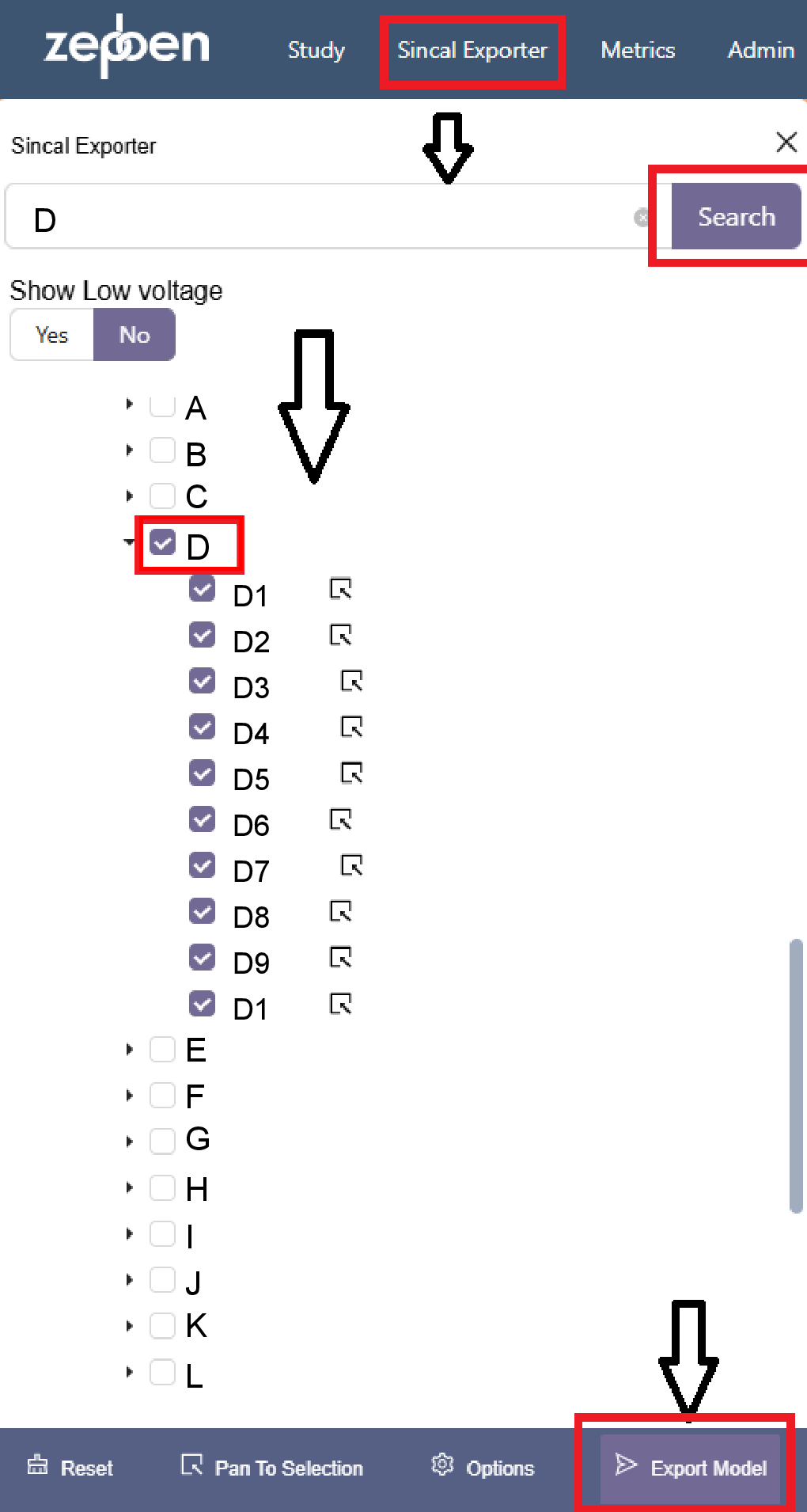
If you wish to have LV included in the model, set the “Show Low Voltage” option to Yes. You can search for and select the distribution subs you would like from each feeder.
In general, export options do not need to be changed between exports, so once set up, the export process is just a matter of selecting the desired feeders/zones and going to the Export button. For notes no how to change the options as well as detailed descriptions of what each option controls, see Export Options
The final screen will allow selection from a set of export options, and allow naming the exported file. Pressing the Export button will initiate the process.
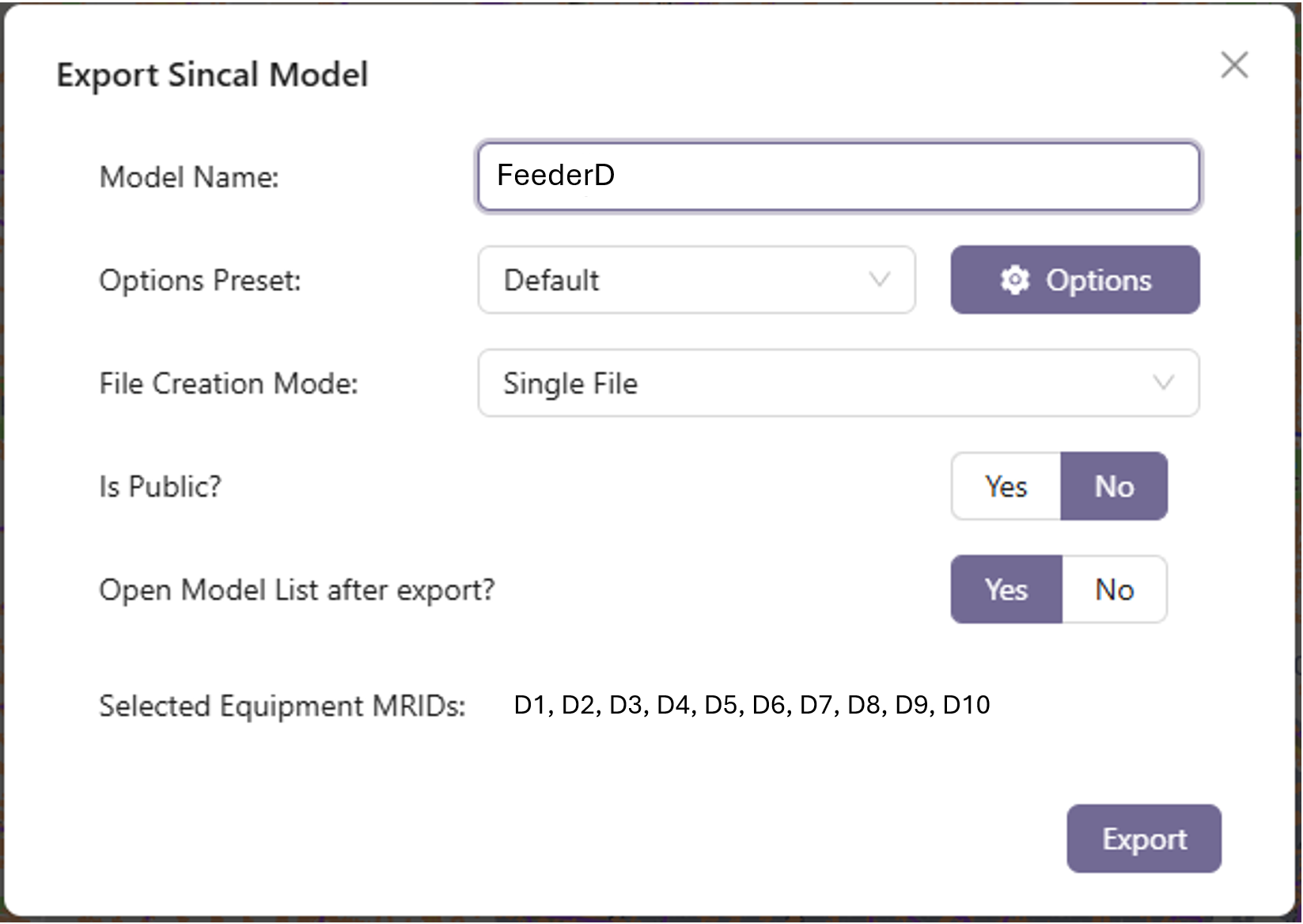
Once complete, the results will be available in the List of SINCAL Model Results

Screen will show list of available models, which can be downloaded for use in SINCAL itself. Log files can also be downloaded, and can contain very helpful information for debugging and testing purposes. The Model list can be accessed later if needed.
For further help on using the tool, see the Frequently Asked Questions, Using Model and Input pages, or ask Zepben for help.