The Device Tree
The device tree is on the left hand panel
The Device Tree panel
The device tree provides an alternative way of viewing the network to the geo-spatial map.
The device tree provides a representation of the network as a tree view of nodes (transformers, switches, supply points and customers), with each node forming a branch, below which assets energised by that node are displayed. This tree view of the network is only available on distribution network HV feeders, which are normally operated as radial network, with one primary supply point - typically the circuit breaker in the zone substation at the start of the feeder. It is not available for the EHV (or sub-transmission network) which is typically operated at a meshed network.
The device tree can be useful in situations where there is very dense network, such as in urban or CBD areas, and it is difficult to visualise the connectivity and connected customers in the geo-spatial map view, and in rural networks where there is a large distance between devices and zooming out makes it difficult to see devices along the feeder in the map.
Opening the Device Tree
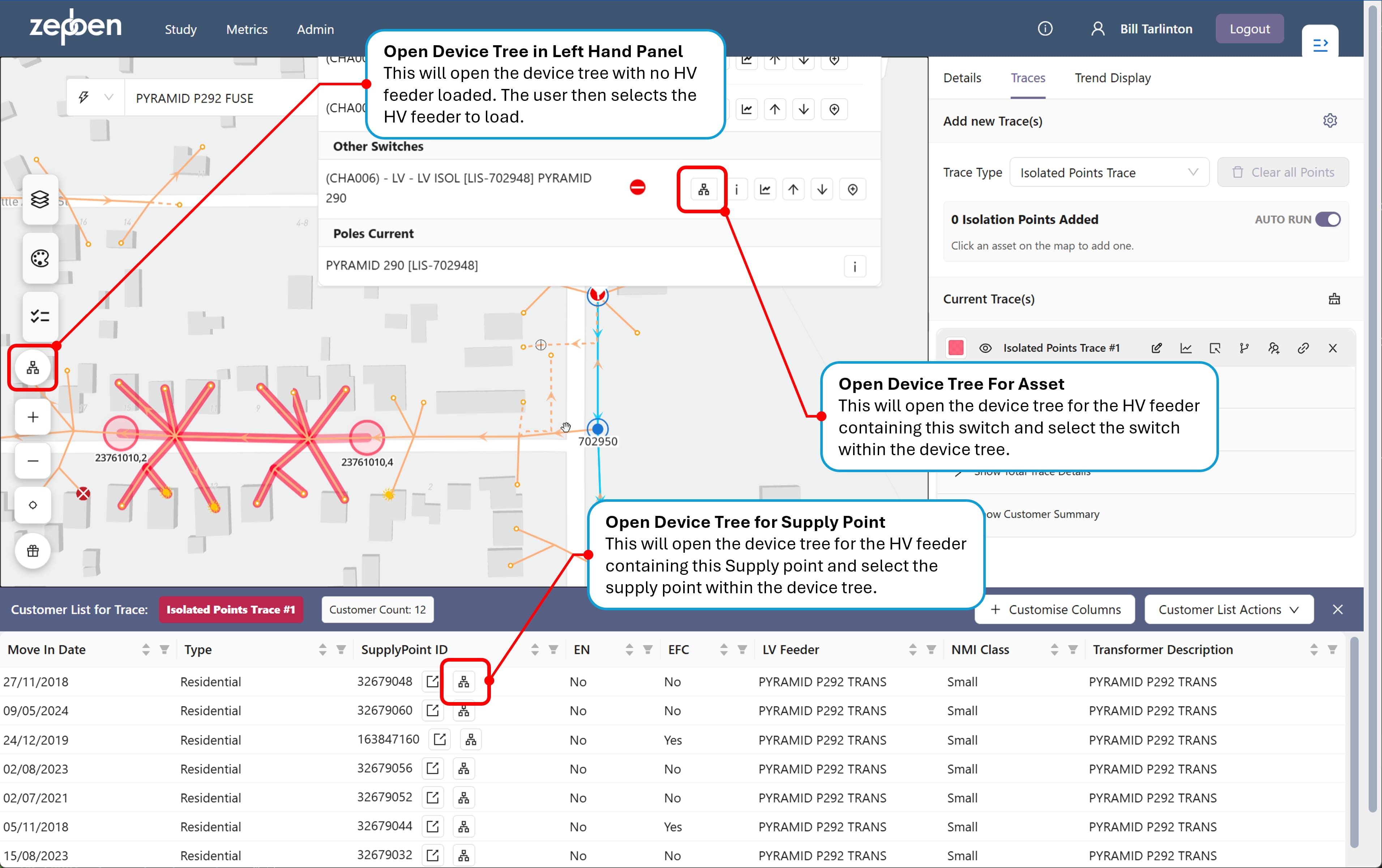
The device tree can be opened by
- pressing the device tree icon on the bottom left of the map,
- from the asset pop up menu on the map, or
- from a supply point from an icon in each row of the customer list.
This is illustrated in the screen shot below.
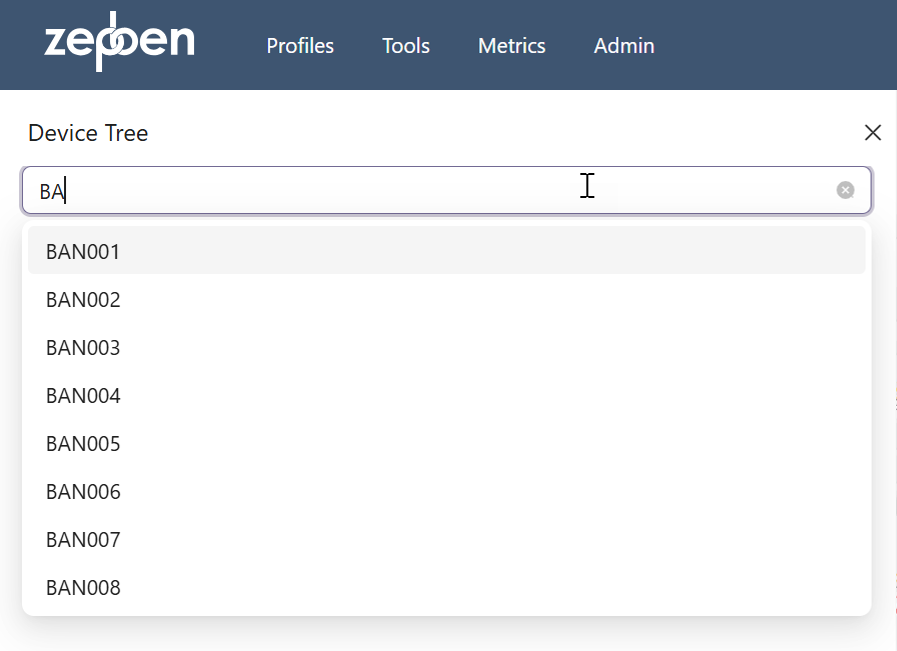
If the device tree panel is opened from the icon shown on the map,  you will need to select the feeder you wish to load into the device tree. This is done with an incremental search drop down, as illustrated in the screen shot below. Each organisation has different conventions for how feeders are named - the feeders available for selection should match the conventions in your organisation.
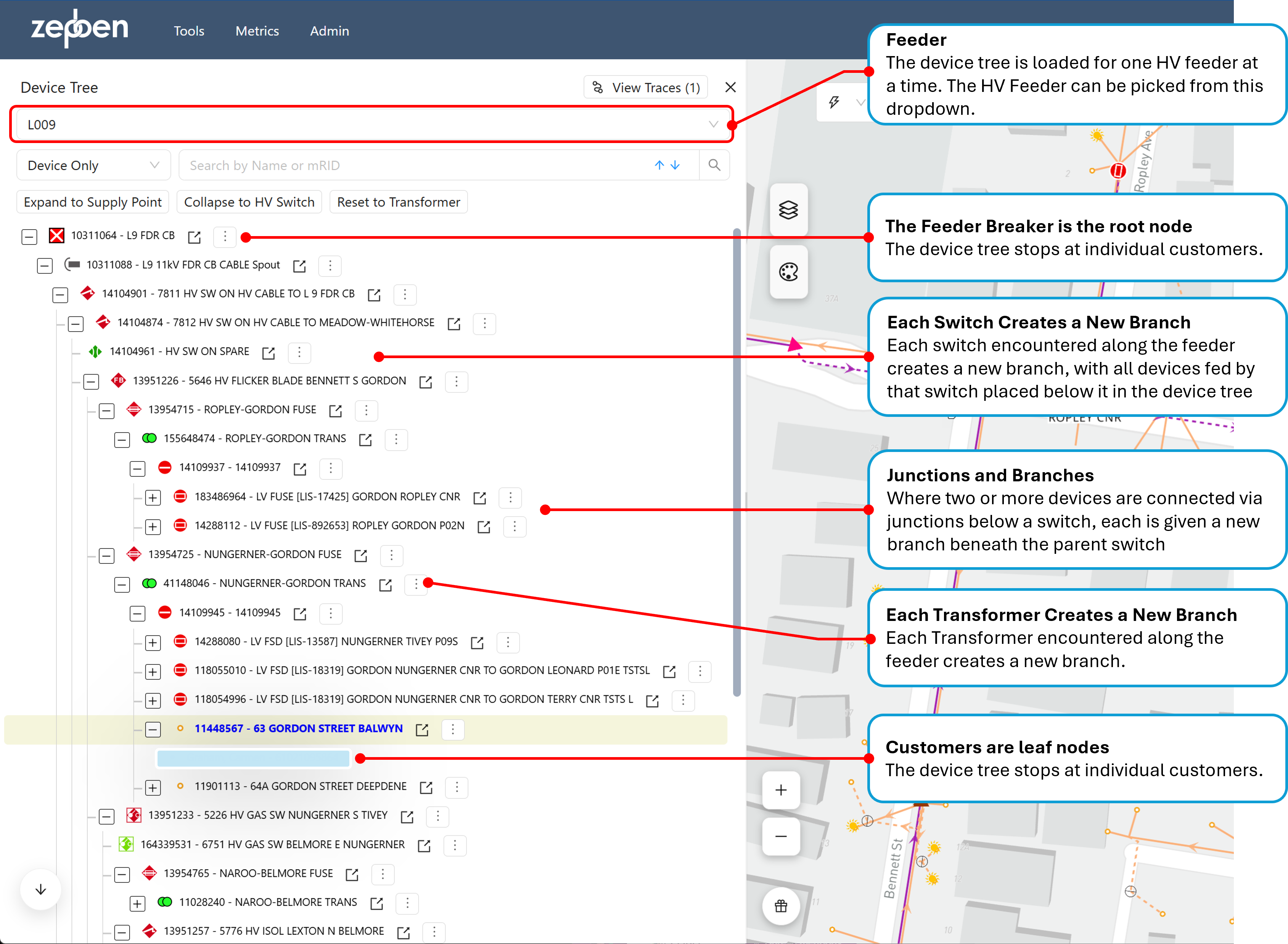
The device tree will open on the left hand panel. The screen shot below shows the device tree open for HV Feeder L009.
The feeder name and the circuit breaker which is the root of the tree may or may not have the same name - this will depend on how the data model has been built for your organisation
Navigating the Device Tree
The device tree behaves in the same way as a set of folders and files in a file system user interface. If there are other devices below a device in the tree, there will be a "plus"  icon next to the left of the device, and clicking this will expand the tree. That branch of the tree may be collapsed by clicking the "minus"
  icon.
icon.
Navigation from the device in the tree to the map is achieved by pressing this icon: 
The  icon brings up an additional menu against the associated device. The total set of options available are described below, noting that some of these are dependent on the type of device selected and any previous actions performed.
| Menu Item | Description/Explanation |
|---|---|
| Expand to LV | If this node has not been previously expanded to LV, this action will be available and will expand all nodes under the node the action was invoked from, down to supply points. It will not expand customers under supply points |
| Expand to customers | If this node has not been previously expanded to customers, this action will be available and will expand all nodes under the node the action was invoked from, down to individual customers |
| Collapse all | This will collapse the tree view under the selected node. Other expanded nodes not under the selected node will not be changed. |
| Collapse Customers | This will collapse the customers under any supply points in the tree view |
| Show Asset Details | This will open the right hand panel and show the "Details" tab for the selected node |
| Create New Isolation Trace | This will create a new isolation trace with the selected node. This will open the right hand panel to show the isolation trace, in the same way as selecting an asset from the map for an isolation trace. More information about how isolation traces are created, visualised and managed via the device tree is provided below. |
| Create new Downstream Trace | This will create a new downstream trace from the selected node. |
| Update to Isolation Trace from here | This will be visible if a downstream trace is being edited. It will change the trace to an isolation trace on the currently selected node. |
| Update to Downstream Trace from here | This will be visible if an isolation trace is being edited. It will change the trace to a downstream trace on the currently selected node. |
| Add Isolation Point | This will add an isolation point to the isolation trace that is currently being edited. If a downstream trace is being edited, it will change the trace type to an isolation trace, and add a new isolation point. |
| Remove Isolation Trace | This will remove the isolation trace that is currently being edited. Control over which isolation trace is being edited it via the trace options in the right hand panel |
| Remove Downstream Trace | This will remove the downstream trace that is currently being edited. |
Traces and the Device Tree
The device tree provides an alternative mechanism to the selection of assets from the map to add and remove nodes to downstream and isolation traces. Other trace types cannot be invoked from the device tree.
When an isolation or downstream trace is initiated from the device tree (via menu options on nodes as described above) the right hand panel will open to allow the trace to be modified, and allow the user to show customer lists, tie points and asset summary details.
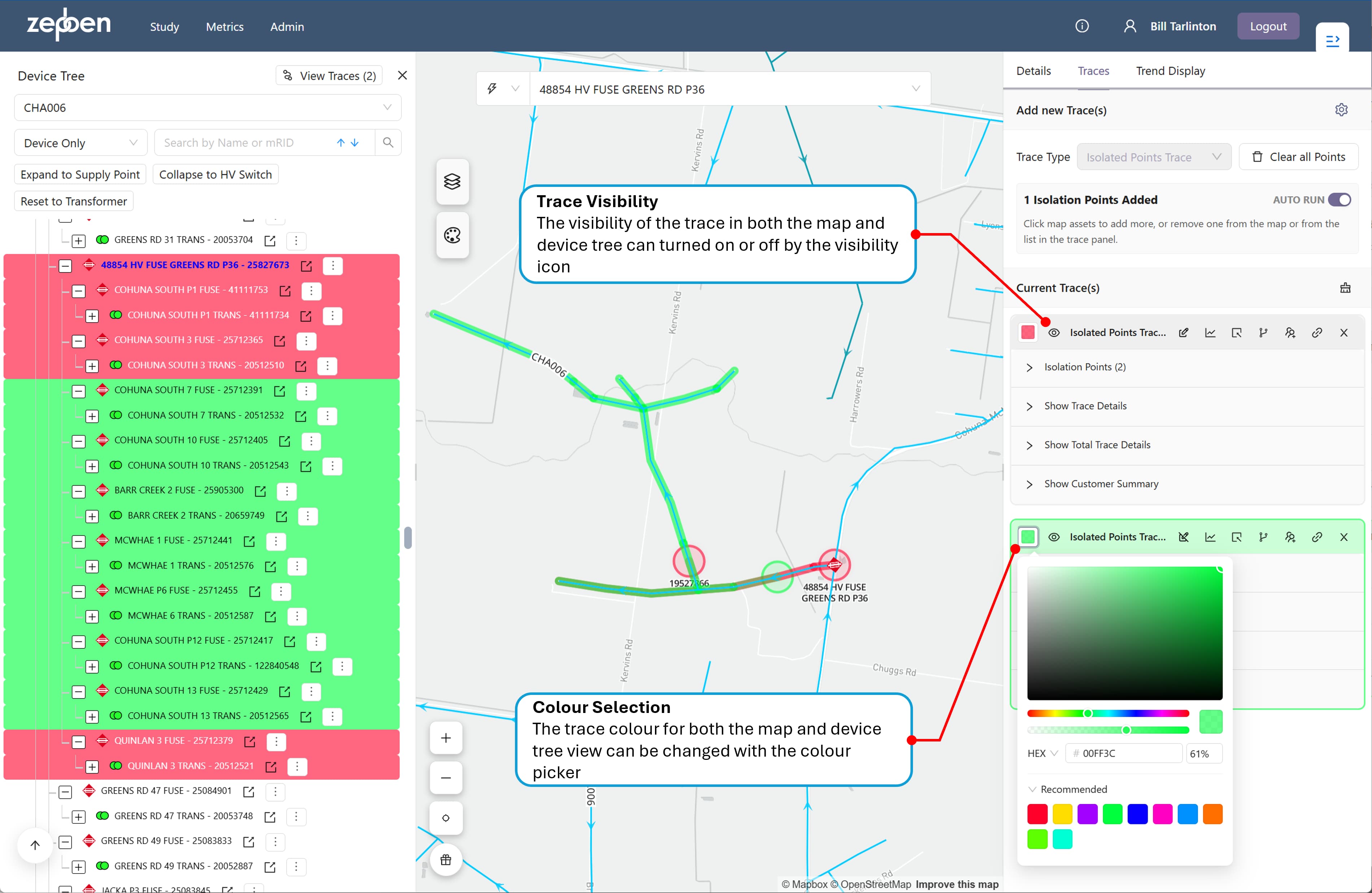
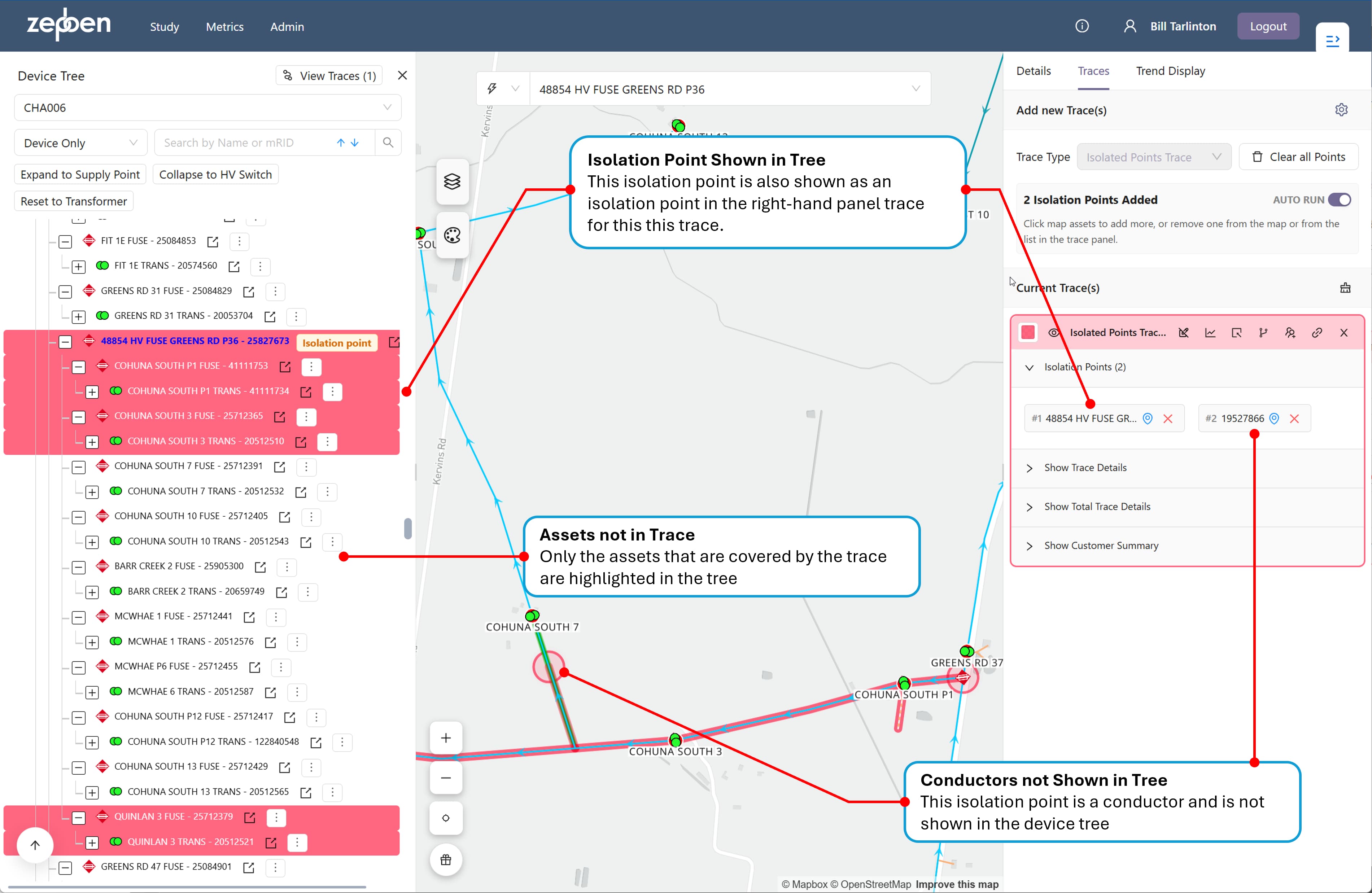
The device tree does not include conductors, and for this reason, conductors cannot be selected from the device tree as part of an isolation trace. Conductors can be added to an isolation trace from the map, and when this is done, the node assets that are part of the isolation trace are highlighted in the device tree. This is illustrated in the screen shot below.
Multiple Trace Visibility
If multiple traces are present at the same time, and these traces are within a feeder currently loaded into the device tree, the visibility and colour of these in both the map and the device tree can be controlled via the right hand panel trace tab, as illustrated in the screen shot below.