Customer Lists
Customer lists are displayed in a panel on the bottom of the screen, when triggered by a user action from within the trace tab on the right hand panel
Customer List panel
Customer lists are created by first selecting the area of the network for which the customer list is to be generated by either a Downstream, Feeder or Isolated Points trace, and then pressing the customer list icon on the trace header panel. This will cause the customer list to be displayed in a resizable panel on the bottom half of the screen, as illustrated in the screen shot below.
Traces for generating customer lists can also be triggered from the device tree
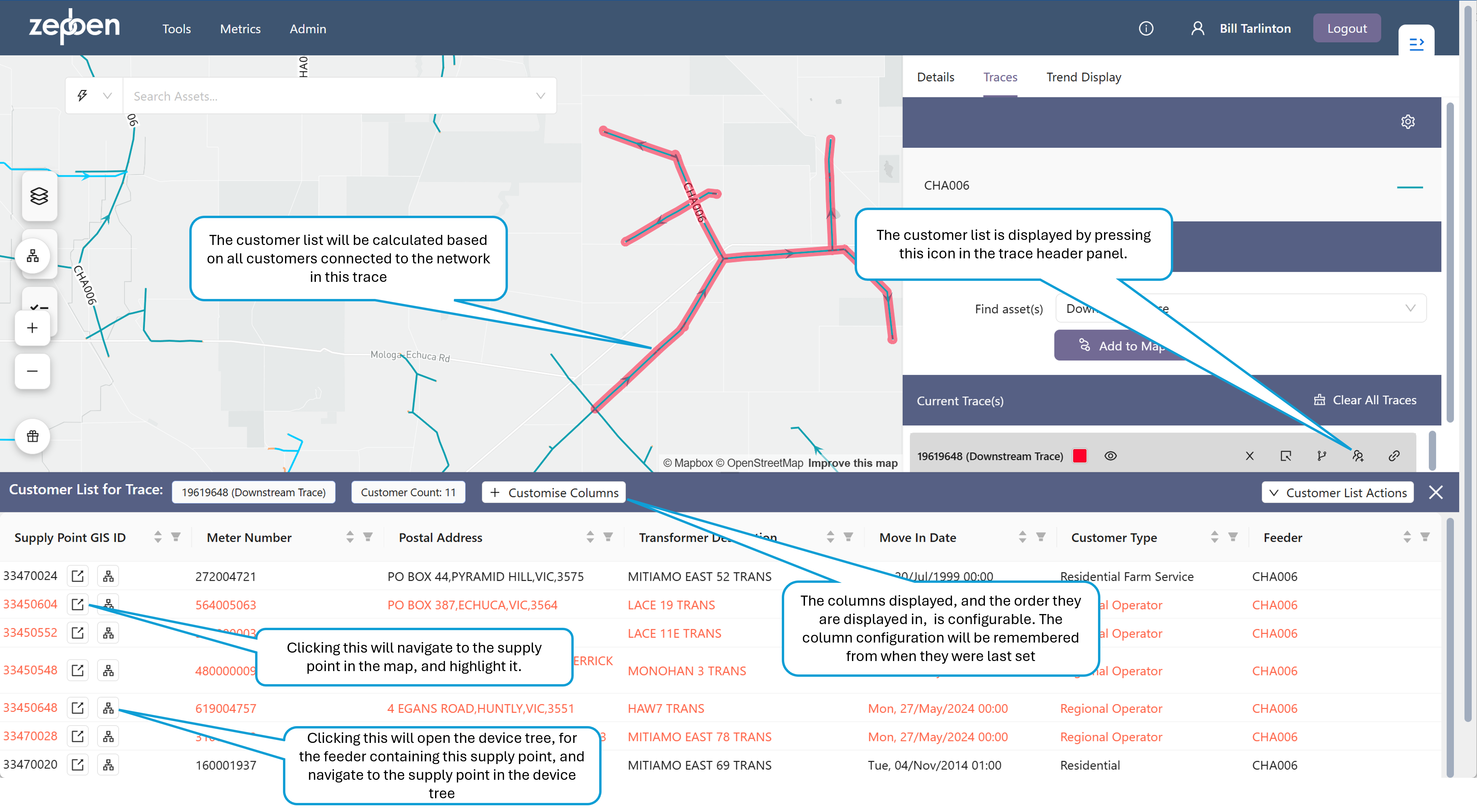
Each row represents an individual customer connection point - this is the customer that is connected to the network, and that needs to be notified if there will be a planned outage. Each customer may have one or more physical electricity meters associated with their account, however for the majority of customers, there will only be one meter.
In our implementation of the IEC CIM model in the Energy Workbench IEC CIM model, the class representing this customer is the UsagePoints.
Customers are generally connected to Supply Points in the GIS model, and there can be one or more customers connected to each of these supply points. In our implementation of the IEC CIM model there are represented by EnergyConsumer
The name of this ID will be different depending on your organisations nomenclature.
Customer List Columns
There are a total of 24 different columns that may be displayed for each row in the table. The names of these columns, and where the column represents a fixed set of values, such as Customer Type, the values in the column, may be different in your organisation to the descriptions provided below. The columns displayed can be configured by the user
| Column | Description/Explanation |
|---|---|
| Zone Substation | The Zone Substation this customer is supplied from. This will correspond to the name of Zone Substation in the network hierarchy. |
| Feeder | The HV/MV feeder this customer is connected to. This will correspond to the name of the HV/MV feeder in the network hierarchy and device tree. |
| Transformer ID | The ID of the transformer this customer is supplied from, as obtained from the source system supplying the network model. |
| Transformer Description | A descriptive name for the transformer - this will be the same as the name of the transformer in the asset details panel, and displayed as the label on the map. |
| Service Address | The physical address of the customer |
| Postal Address | This is the postal address for the customer, which may be different to the Service Address. |
| SupplPoint ID | The ID of the supply point the customer is connected to in the source system. |
| NMI | In Australia, each customer connection point is provided with a unique ID called a NMI (National Metering Identifier). In New Zealand, this ID is called an ICP (Installation Control Point). In Great Britain, it is called the MPAN (Meter Point Administration Number). In the USA, there is no single unified national numbering systems - but the SPID (Service Point Identifier) is often used. |
| First Name | The first name of the customer |
| Last Name | The last name or business name for the customer. |
| Customer Type | The customer Type - This will be different for each organisation, but typically includes types such as "Residential", "Commercial" and "Industrial". |
| EFC | This indicates there is some form of generation connected at the customer site - most often roof top PV with an inverter feeding back to the grid. |
| EN | This indicates the NMI is part of an embedded network, that is not visible on the maps. This typically occurs when there are network assets owned by a third party, connected to a single supply point on either the HV or LV network. |
| Move in Date | This is the date at which the current customer became associated with the NMI. |
| NMI Class | This is organisation specific, but will typically be values such as "Small", "Large" |
| DLF | This is a field that is used for distribution loss factor calculations - it is organisation specific, and may not be populated, depending on the methodology used by the organisation for calculation of distribution loss factors. |
| TNI | This is the Transmission Node Identifier. This indicates the Transmission network ultimately supplying the customer. In australia, this is a four letter code defined by AEMO. |
| Distributor | This is the name of the distribution network business for the customer. In many cases, this will be the same for all customers, but in some network businesses, there may be more than one asset "owner" |
| LV Feeder | This is the name of the LV Feeder the customer is connected to. This may have the same name as the transformer, if there is only one LV circuit on the transformer, of if your organisation only has one LV Feeder per distribution transformer. In other cases, where there are multiple LV circuits, it may be used to show which of these LV circuits the customer is connected to. |
| Sensitivity Category | This will be different for each organisation - it is used to indicate that the customer has some sort of sensitivity, such as life support or critical commercial operations. |
| Phone | An alternative number for the customer. May not always be populated, or may also contain the Mobile Phone |
| Mobile Phone | The mobile, or cell phone number for the customer. |
| Meter Number | This is an ID that uniquely identifies the Meter for the NMI. Note there may be more than one meter associated with each NMI, in this case, either the first meter found on the NMI will be displayed, or all meters will be displayed in a comma separated list - this is dependent on the implementation in your organisation. |
| Tariff | This is the distribution network tariff that is applied to the customer for billing purposes. |
Customers with a sensitivity category that indicates they have life support equipment will also be highlighted in a different colour in the customer list.
Column list selector
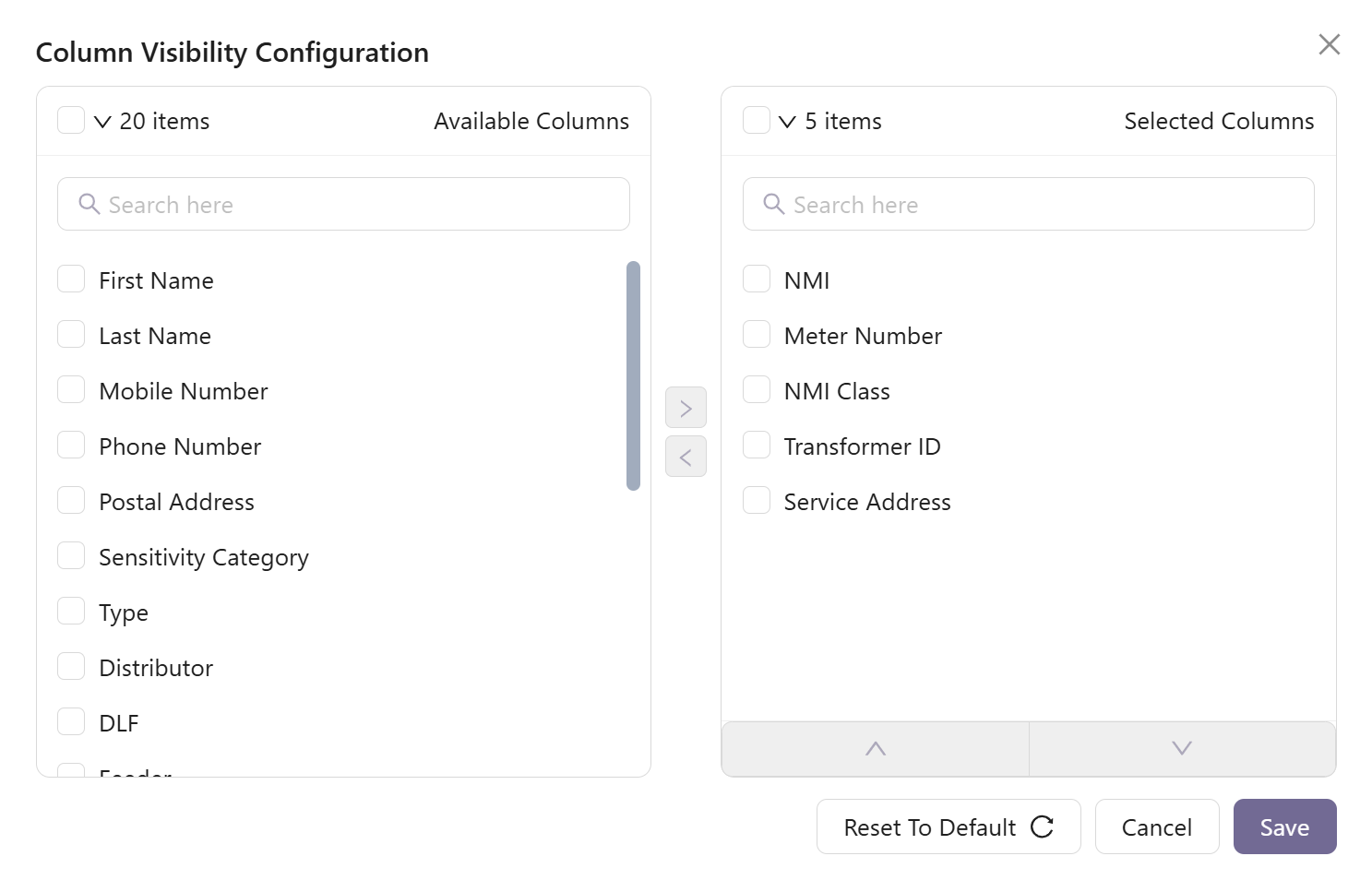
The columns that are actually displayed in the customer list are user configurable.
These will be remembered between browser sessions, but are not saved with the user, meaning if you open the customer list on a different device, or in a different browser, you will need to adjust the columns you can see again.
The "customize list columns" button on the top of the customer list panel will display the following dialog box, from which both the columns that are displayed can be selected, as well as the order they appear left to right.
Customer list actions
A menu is provided on the right hand side of the customer list that allows you to export customer details to the clipboard, or as CSV files The options are:
- Copy selected NMI's - this will copy the selected NMIs to the clipboard (Todo, there is a ticket on this, as can't see how to select NMIs)
- Download NMI's as CSV - this will create and download a CSV file containing all NMI's
- Download customer details CSV - this will create and download a CSV file will all customer details.
Each user is assigned privileges that controls whether certain fields containing sensitive information can be viewed, or not. If you cannot see any values for various fields - for example phone numbers and NMI, this may be because your current permissions do not allow it. If you need this changed, you will need to raise this with the system administrator.